> ## Documentation Index
> Fetch the complete documentation index at: https://phalanetwork.mintlify.site/llms.txt
> Use this file to discover all available pages before exploring further.

# Step 4: Deploy KMS into CVM

> Deploy KMS into CVM

<div className="bg-white border border-gray-200 rounded-lg p-6 my-6">
  <p className="text-gray-600 mb-4">The dstack-vmm is running now. Open another terminal and go to the <code className="bg-gray-200 px-1 rounded">kms/dstack-app/</code> directory:</p>

  ```bash theme={null}
  cd dstack/kms/dstack-app/
  ./deploy-to-vmm.sh
  ```

  <div className="mt-4">
    <h4 className="font-medium mb-2">Configure Environment Variables</h4>
    <p className="text-sm text-gray-600 mb-2">Edit the <code className="bg-gray-200 px-1 rounded">.env</code> file with required variables:</p>
  </div>

  <div className="bg-gray-50 p-4 rounded-lg">
    ```
    # .env
    VMM_RPC=unix:../../vmm-data/vmm.sock
    KMS_CONTRACT_ADDR=0xFE6C45aE66344CAEF5E5D7e2cbD476286D651875
    KMS_RPC_ADDR=0.0.0.0:9201
    GUEST_AGENT_ADDR=127.0.0.1:9205
    ETH_RPC_URL=https://rpc.phala.network
    GIT_REV=HEAD
    OS_IMAGE=dstack-0.5.2
    IMAGE_DOWNLOAD_URL=https://files.kvin.wang/images/mr_{OS_IMAGE_HASH}.tar.gz
    ```
  </div>

  <div className="bg-blue-50 border-l-4 border-blue-400 p-4 mt-4">
    <p className="text-sm text-blue-700">
      <strong>Important:</strong> Set the <code>KMS\_CONTRACT\_ADDR</code> to the address from the previous step and ensure <code>IMAGE\_DOWNLOAD\_URL</code> points to the correct dstack OS image for hash verification.
    </p>
  </div>

  <div className="mt-4">
    <h4 className="font-medium mb-2">Run deployment script again:</h4>
    <p className="text-sm text-gray-600 mb-2">After configuring the .env file, run the script again to deploy:</p>
  </div>

  <div className="bg-gray-100 p-3 rounded text-sm mt-2">
    <pre>
      App compose file created at: .app-compose.json
      Compose hash: ec3d427f62bd60afd520fce0be3b368aba4516434f2ff761f74775f871f5b6e3
      Deploying KMS to dstack-vmm...
      App ID: ec3d427f62bd60afd520fce0be3b368aba451643
      Created VM with ID: f5299298-bf4f-43c0-839c-88c755391f3c
    </pre>
  </div>
</div>

### Monitor KMS Deployment

<div className="bg-white border border-gray-200 rounded-lg p-6 my-6">
  <h4 className="font-medium mb-2">Check KMS CVM Status:</h4>

  ```bash theme={null}
  cd ../../vmm-data/
  tail -f run/vm/f5299298-bf4f-43c0-839c-88c755391f3c/serial.log
  ```

  <div className="mt-4">
    <h4 className="font-medium mb-2">Wait for KMS Ready Signal:</h4>

    <div className="bg-green-50 p-3 rounded text-sm">
      <pre>
        br-1df48b1c448a: port 2(veth36ab5cb) entered forwarding state
        app-compose.sh\[882]:  Container dstack-kms-1  Started
        app-compose.sh\[688]: Pruning unused images
        app-compose.sh\[8347]: Total reclaimed space: 0B
        app-compose.sh\[688]: Pruning unused volumes
        app-compose.sh\[8356]: Total reclaimed space: 0B
        \[  OK  ] Finished App Compose Service.
        \[  OK  ] Reached target Multi-User System.
        Starting Record Runlevel Change in UTMP...
        \[  OK  ] Finished Record Runlevel Change in UTMP.
      </pre>
    </div>
  </div>
</div>

### KMS Bootstrap Process

<div className="bg-white border border-gray-200 rounded-lg p-6 my-6">
  <div className="flex flex-col lg:flex-row gap-6">
    <div className="flex-1">
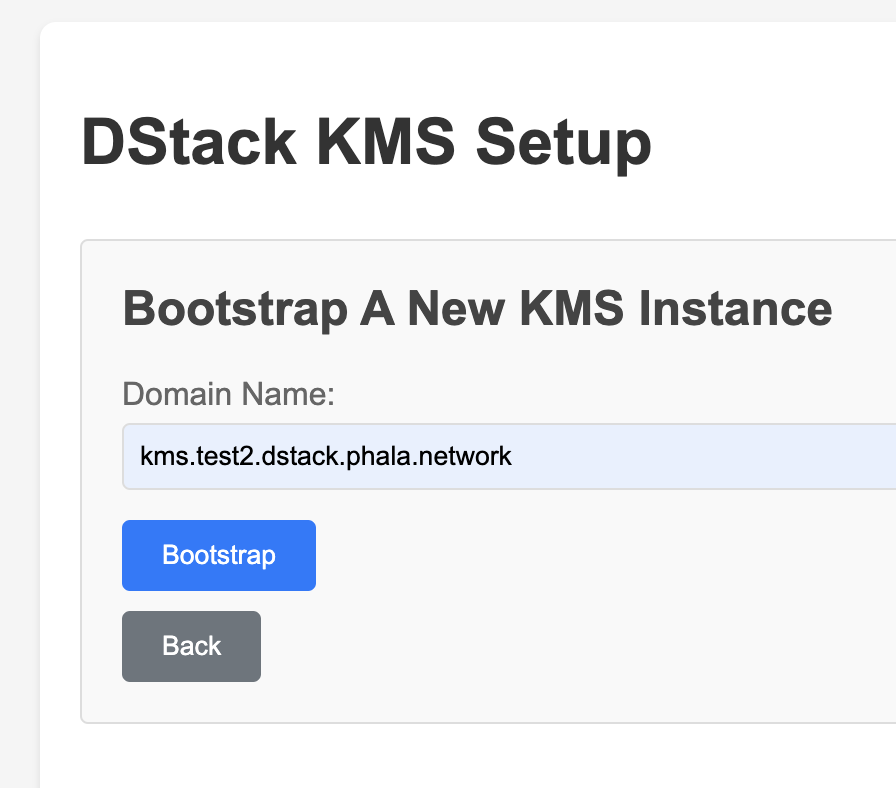
      <h4 className="font-medium mb-4">Access KMS Interface</h4>
      <p className="text-gray-600 mb-4">Open your browser and navigate to:</p>

      <div className="bg-gray-100 p-2 rounded text-center font-mono">
        [http://127.0.0.1:9201/](http://127.0.0.1:9201/)
      </div>

      <ol className="list-decimal list-inside mt-4 space-y-2 text-sm">
        <li>Click the <strong>Bootstrap</strong> button</li>
        <li>Fill in the domain serving the KMS (e.g., <code>kms.test2.dstack.phala.network</code>)</li>
        <li>Click <strong>\[Bootstrap]</strong> → <strong>\[Finish setup]</strong></li>
      </ol>
    </div>

    <div className="flex-1">
      <div className="flex justify-center">
        <img src="https://mintcdn.com/phalanetwork/3Ae8rJnmVcGqGijP/docs/assets/kms-bootstrap.png?fit=max&auto=format&n=3Ae8rJnmVcGqGijP&q=85&s=cd12d882cc4d2b9abea60392fe54e3f6" alt="KMS Bootstrap Interface" className="rounded-lg shadow-md max-w-full h-auto" style={{ maxWidth: '400px' }} width="896" height="788" data-path="docs/assets/kms-bootstrap.png" />
      </div>
    </div>
  </div>

  <div className="mt-6 pt-6 border-t border-gray-200">
    <div className="flex flex-col lg:flex-row gap-6">
      <div className="flex-1">
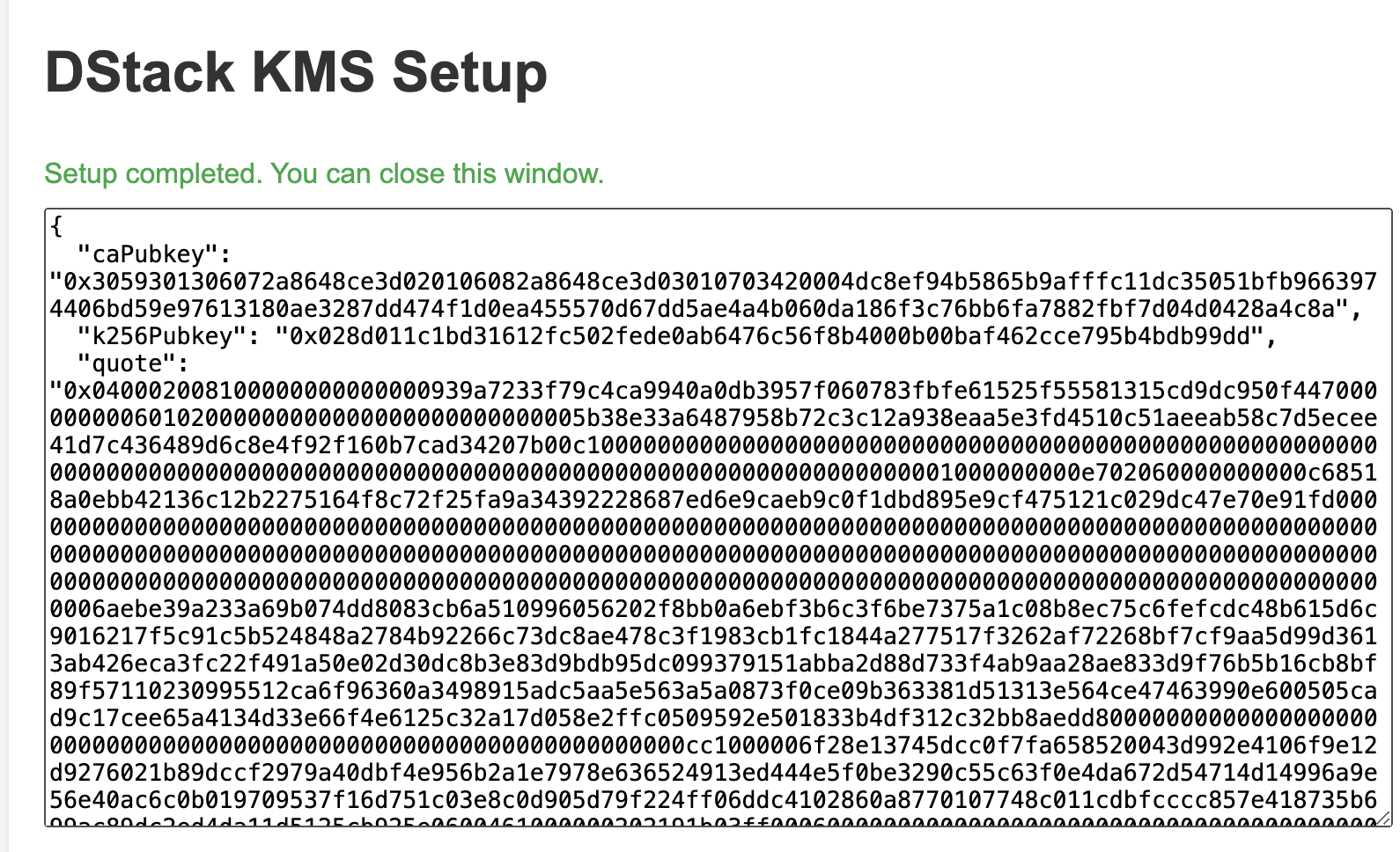
        <h4 className="font-medium mb-4">Bootstrap Result</h4>

        <p className="text-gray-600 mb-4">
          After successful bootstrap, you'll see the public key and corresponding TDX quote:
        </p>

        <div className="bg-blue-50 p-3 rounded text-sm">
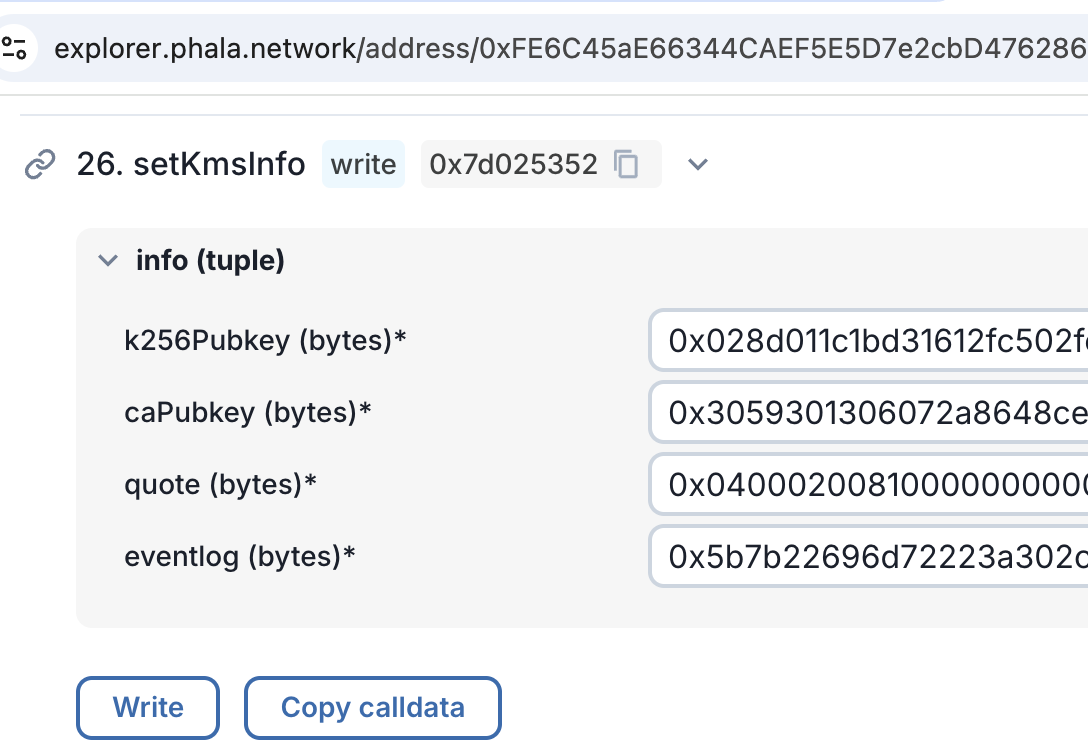
          <p><strong>Next Step:</strong> Set the KMS info in the kms-auth-contract using the displayed values.</p>
        </div>
      </div>

      <div className="flex-1">
        <div className="flex justify-center">
          <img src="https://mintcdn.com/phalanetwork/3Ae8rJnmVcGqGijP/docs/assets/kms-bootstrap-result.png?fit=max&auto=format&n=3Ae8rJnmVcGqGijP&q=85&s=595c8bd3440978c5f2e60652458e314d" alt="KMS Bootstrap Result" className="rounded-lg shadow-md max-w-full h-auto" style={{ maxWidth: '400px' }} width="1590" height="968" data-path="docs/assets/kms-bootstrap-result.png" />
        </div>
      </div>
    </div>
  </div>

  <div className="mt-6 pt-6 border-t border-gray-200">
    <div className="flex justify-center">
      <img src="https://mintcdn.com/phalanetwork/3Ae8rJnmVcGqGijP/docs/assets/kms-auth-set-info.png?fit=max&auto=format&n=3Ae8rJnmVcGqGijP&q=85&s=ba2fbd3eb5d3bc8de41182484ea35232" alt="KMS Auth Contract Configuration" className="rounded-lg shadow-md max-w-full h-auto" style={{ maxWidth: '600px' }} width="1088" height="754" data-path="docs/assets/kms-auth-set-info.png" />
    </div>

    <p className="text-center text-sm text-gray-600 mt-2">
      Configure the KMS info in the auth contract interface
    </p>
  </div>

  <div className="bg-green-50 border-l-4 border-green-400 p-4 mt-6">
    <p className="text-sm text-green-700">
      <strong>Success!</strong> The KMS instance is now ready to use.
    </p>
  </div>
</div>